7 Krita plugins to boost your creative workflow
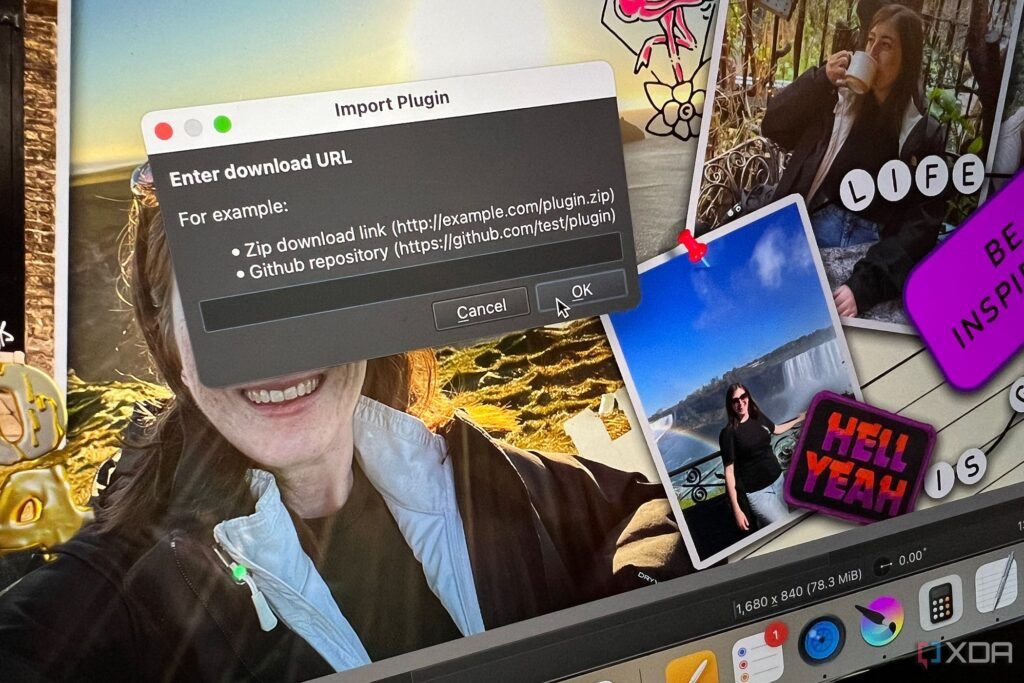
Krita is one of the most popular open-source creative tools. Many creative users see
Krita as the best alternative to Photoshop
, but it’s popular regardless of whether you’re trying to find a Photoshop replacement or not. As with most creative software, even ones that have vast native tool libraries, downloading and installing plugins will improve your experience and workflow output. Krita has many useful plugins available from multiple places, with a helpful community of advisors and developers, offering fantastic results.
7
Docker Under Cursor
Easily find your docker wherever it hides
Aqaao
This plugin lets you quickly hide and show your Krita dockers using shortcuts. This even works in Canvas Only mode. Docker Under Cursor is the best plugin to easily find widget panels under the cursor, allowing any docker to float and display wherever the mouse is positioned using keyboard shortcuts.
Set up a shortcut for each docker to easily switch between floating and hidden docker windows. It can also remember the position of your cursor relative to the docker when the docker was last hidden. The floating docker can be kept in the main window, and it can also be set up to hide the docker whenever your cursor moves away from it.
6
Style Sheet Loader Extension
Apply style sheets to Krita’s interface
Using the Style Sheet Loader Extension plugin, you can load a Qt style sheet in Krita, applying it to Krita’s native UI. Once loaded, the file path can be automatically loaded upon startup anytime in the future.
You can do multiple things with the style sheet, such as modifying colors by widget type and using rounded edges in the interface. You can add colored edges and the color scheme of UI elements like the scroll bar or tabs. You’re sure to save time by customizing your interface more efficiently through this plugin.
Sheet Style Loader Extension
5
Blender Layer
A 3D Blender viewer for Krita
Source: Yuntoko
Blender is the best open-source 3D design and animating tool
, so it’s great to be able to work with Blender directly in Krita, which is also a popular open-source tool. The Blender Layer plugin lets you stream a 3D view from Blender directly into Krita, and it is treated like a regular Krita layer. You can trace over it, change blending modes, and apply layer styles to it.
There are some limitations, like poor performance for higher resolutions, as well as the requirement of having Blender open in another window.
This plugin has so far only been tested on Windows, not on other operating systems, including Linux, which is popular for open-source projects.
I’m done with proprietary commercial stuff. 2025 is the year when I seriously look to drop many services and software for open-source alternatives. I’ve already started with Darktable and GIMP for handling RAW file processing. I’ll do the same with Office, deploying Nextcloud on our live home lab environment with full collaborative and external access support. There will be hurdles for sure, but it needs to happen.
4
Krita AI Diffusion
AI inpaint tool
Although many open-source users typically prefer to avoid AI, it’s nice to have the option if you want it. The Krita AI Diffusion plugin allows for AI pinpointing using generative AI tools.
The plugin integrates Stable Diffusion AI technology into your Krita window, allowing you to use text prompts to generate images in your digital art. It offers both local and cloud-based processing options, for results that allow you to inject a little magic into your digital art.
The plugin includes inpainting, outpointing, image generation, refinements, live painting, and more features. It has version history and customization options, so you can adjust the plugin to truly meet your needs.
Related
Adobe Photoshop’s Firefly vs. ComfyUI and Stable Diffusion
There’s an extremely powerful and free tool that shouldn’t be dismissed
3
Reference Tabs Docker
Don’t lose your reference image
Source: Freyalupen
The Reference Tabs Docker plugin lets you view reference images easily in tabs during your Krita workflow. Through this docker, you can zoom, scroll, mirror, and rotate images, as well as sample colors easily.
It lets you load multiple image formats, including KRA, Krita’s native format. You can drag and drop images to the docker to save time. There are also keyboard shortcuts you can use for zooming, panning, and rotating the reference image.
You can switch between smooth or sharp scaling modes, and you have the benefit of adding a background color to transparent images, which can help with visibility.
2
Palette Generator
Quick and easy color palettes
Source: Krita-Artists
Using this plugin, you can quickly and easily create color palettes for any color theme. This automates a 24-swatch palette based on one selected color. It adds a multitude of shades, hues, complementary colors, and more. You can choose the type of palette to generate from the initial color under a dropdown. There are options like double split complementary, analogous, and accented achromatic to name a few.
The Palette Generator plugin saves loads of time and agonizing over color choices for your creative designs.
1
Imagine Board
Create image boards easily
Source: EyeOdin
Although it isn’t tested on Linux, and has a few bugs reported, the Imagine Board plugin is a cool option to add to your Krita toolbox. With Imagine Board, users can browse images and create image boards from them.
It uses grid-based visual systems with three modes: Preview, Grid, and Reference. It features slider and number index interfaces. You can search and view images in a slideshow, and Imagine Board supports a variety of file formats, so you should be able to access most photo types.
Make Krita do more for you
There are seemingly infinite Krita plugins that can enhance your creative skills and abilities. From interface changes which can brighten up your workspace, to the option for AI integration, you can install whatever your heart desires. If you don’t see plugins you want, you could even code your own to install for yourself using GitHub and other tools. Krita’s open-source community is helpful for suggesting new tools and also for receiving help to install, find, and troubleshoot the plugins you need.