How to Make AI Photos Look Completely Real
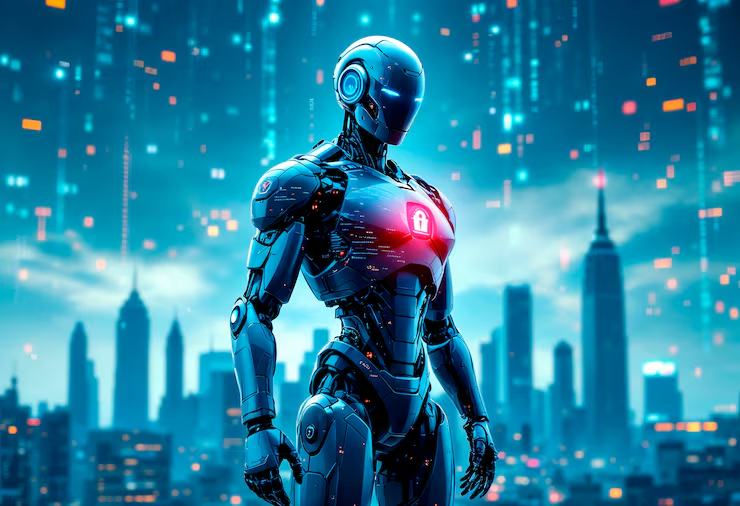
AI image generation has come a long way, but if you’ve spent any time with it, you’ve probably noticed: most AI photos don’t quite look real. They look good — sometimes impressively so — but there’s something about them that screams “this was made by a computer.”
The good news is that with the right approach, you can generate photos that genuinely pass as real. Here’s what makes AI images look fake and how to fix it.
Why AI Photos Look Fake by Default
The most common giveaway is that AI images are too clean. Everything is perfectly lit, perfectly composed, and perfectly smooth. Skin looks like it’s been retouched by a magazine editor. Surfaces have no dust, no scratches, no wear. The overall image has a “plastic” quality to it – technically flawless, but lifeless.
This happens because AI models are trained to produce visually appealing output. They optimize for what looks good on a screen, which means they default to commercial photography aesthetics: even lighting, centered subjects, saturated colors, and sharp focus everywhere. Real photos almost never look like this.
The Face Problem
Faces remain one of the hardest things for AI to get right. While the latest models have largely solved the obvious issues (extra fingers, melting features), there’s a subtler problem: character consistency.
Generate a person in one image, then try to generate the same person in another, and you’ll get someone who looks vaguely similar but clearly isn’t the same individual. Facial proportions shift, skin tones change, and small details like the shape of the nose or the distance between the eyes will be slightly different each time.
This is especially obvious when you’re trying to create a series of images featuring the same person — for a blog, a social media campaign, or any project that needs visual continuity.
How to Prompt for Realism
The key insight is simple: real photos are imperfect. If you want AI images to look real, you need to explicitly ask for imperfection.
Here are specific prompting techniques that work:
Specify a phone camera. Instead of letting the AI default to DSLR-quality output, tell it the photo was “taken on an iPhone 14” or “shot on a
smartphone camera.” This naturally introduces the slight softness, noise, and lens characteristics people associate with real photos.
Break the lighting. Real photos are rarely perfectly lit. Add prompts like “overhead fluorescent lighting,” “harsh midday sun with strong
shadows,” or “dimly lit room with a single window.” Mixed and imperfect lighting is one of the strongest realism cues.
Mess up the composition. Real photos taken by real people are slightly off-center, sometimes a bit crooked, occasionally slightly out of focus. Prompts like “slightly off-center framing,” “casual snapshot,” or “candid photo” push the AI away from its default magazine-cover composition.
Add environmental noise. Real environments are messy. Include details like “cluttered desk in the background,” “other people partially visible,” or “slightly foggy mirror.” These small imperfections make the image feel lived-in.
Reduce the polish. Ask for “no retouching,” “natural skin texture,” “visible pores,” or “minor blemishes.” The AI’s tendency to smooth everything out is one of the biggest realism killers.
A practical example — instead of prompting:
▎ “A woman drinking coffee in a café”
Try:
▎ “Candid smartphone photo of a woman drinking coffee at a small café table, slightly off-center framing, natural skin with no retouching, warm but uneven indoor lighting, other customers blurred in the background, casual and slightly messy composition, taken on iPhone”
The difference is significant.
Tools That Help
If you’re generating photos regularly and realism matters, your choice of tool makes a real difference.
AI Photo Generator is built specifically for this use case — generating realistic-looking photos efficiently. Rather than wrestling with a chat
interface one image at a time, you can produce batches of photos with consistent quality, which is especially useful if you need multiple images for a project.
You can also use general-purpose AI tools like Google AI Studio or ChatGPT to generate images. These work fine for one-off generation, but if you need more than a handful of images, the chat-based workflow gets tedious fast — you’re typing a prompt, waiting, reviewing, adjusting, and repeating, all within a conversation thread that wasn’t designed for image production at scale.
The Bottom Line
The secret to realistic AI photos isn’t better models — it’s understanding that realism means imperfection. The more you move away from the AI’s default “perfect commercial photo” output and toward the messy, uneven, slightly flawed look of real smartphone photography, the more convincing your results will be.
Start with the prompting techniques above, and you’ll be surprised how quickly your AI-generated photos start passing as real ones.

Alexia is the author at Research Snipers covering all technology news including Google, Apple, Android, Xiaomi, Huawei, Samsung News, and More.