How to Use Apple TV Snoopy Screensavers on Your Mac
How to Get Apple TV 4K’s Snoopy Screensavers on Your Mac
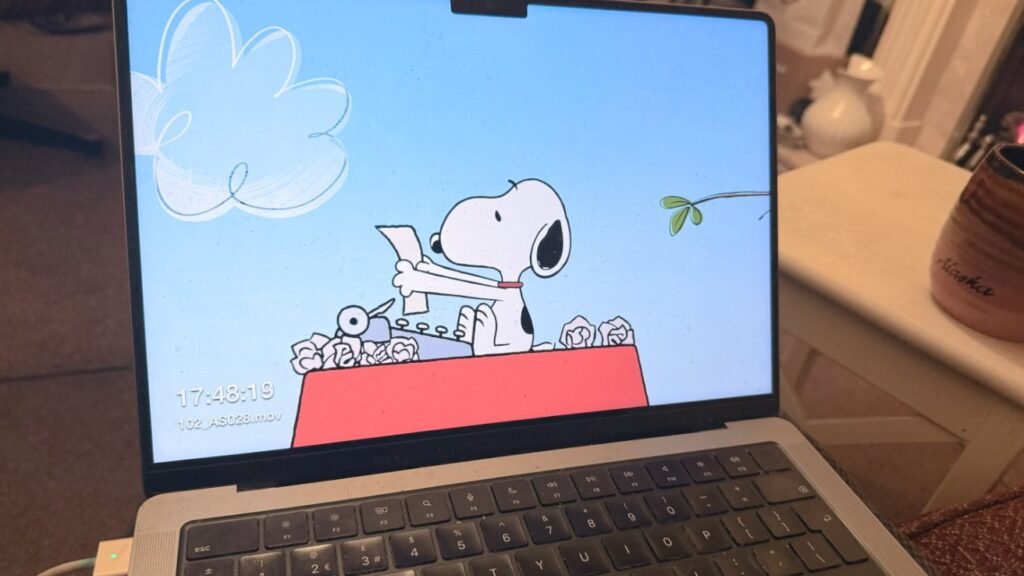
Apple TV 4K now features animated Snoopy screensavers alongside its stunning landscapes and cityscapes. Would you like to enjoy these delightful Snoopy moments on your Mac? Here’s how you can do it.
The Snoopy screensavers available include:
- Snoopy typing his next masterpiece
- Snoopy in space
- Snoopy and Woodstock playing football
- Woodstock and Snoopy at the movies
While getting these screensavers onto your Mac involves several steps, each one is straightforward. Follow this guide to bring a touch of Snoopy to your desktop.
Step 1: Download the Screensavers
This step requires Apple’s Xcode app and some Terminal commands. Don’t worry – Xcode is free and available here.
Using Xcode:
- Open Xcode.
- From the Xcode menu, go to Settings.
- Click Components and ensure tvOS 18.2 is selected. Once downloaded, close the window.
- Select File > New > Project…
- In the dialog box, select tvOS from the top row and choose App. Click Next.
- Name your project “Snoopy” and add any organization name (e.g., your name).
- Save the project to your Desktop and quit Xcode.
Using Terminal:
- Open Terminal (found under Applications > Utilities or through Spotlight).
- Copy and paste the following command into Terminal, then press Enter:
cd '/Library/Developer/CoreSimulator/Volumes/tvOS_22K154/Library/Developer/CoreSimulator/Profiles/Runtimes/tvOS 18.2.simruntime'
This switches to the folder where Xcode has saved tvOS screensavers. - Copy and paste this command to create a folder and move the screensavers into it:
mkdir ~/Desktop/appletv_resources && sudo find . \( -name "*.mov" -o -name "*.heic" \) -exec cp {} ~/Desktop/appletv_resources \;
Now, you’ll have a new folder called appletv_resources on your desktop containing the screensavers.
Step 2: Locate the Snoopy Screensavers
The folder contains all tvOS screensavers, so you’ll need to identify the Snoopy ones.
- Open the appletv_resources folder and sort items by size.
- Use Quick View (select a screensaver and press the space bar) to preview files.
- Identify the four Snoopy screensavers and move them to a separate folder.
Step 3: Move the Screensavers to a Usable Location
Screensavers need to be stored in specific locations to work on macOS.
- Open your Downloads folder.
- Right-click its name at the top of the Finder window and choose Users.
- Open the Shared folder and move your Snoopy screensavers into it.
Step 4: Install and Use the Screensavers
To use the screensavers, download the free app Aerial Companion.
- Install Aerial Companion.
- Open System Settings > Screen Saver on your Mac.
- Scroll to the bottom of the screensaver list and select Other > Aerial.
- In the preview window, click Options.
- If the Options button doesn’t respond, restart System Settings and try again.
- In the Aerial settings pane:
- Click More Videos.
- Select Local Sources and ensure your Snoopy folder is checked.
- Deselect any other sources.
- Click Close.
Your Snoopy screensavers are now ready to use!
Optional: Customize Your Screensaver Settings
In System Settings > Screen Saver, you can adjust the idle time before the screensaver activates. If you ever want to switch back to other screensavers, you can choose a different Aerial option or an entirely new screensaver.
Enjoy the charm of Snoopy right on your Mac desktop!

Amit Gohar is Technical writer at ResearchSnipers.com, he is well versed Technology News writer, he has completed is MS computer Science in 2020. He can be reached at amit.g@researchsnipers.com