Stellar Migrator for Exchange Review: Testing Migration Speed, Performance & Usability

Migrating mailboxes from Exchange Server to Microsoft 365 is one of those projects every Exchange administrator eventually faces, and it rarely comes without challenges. Permissions don’t always align, large mailboxes can stall mid‑transfer, and what should be a straightforward cutover often stretches into weeks of troubleshooting. The promise of “Zero Downtime” is appealing, but in practice it requires the right tools to make it achievable.
With a migration planned for one of our clients running Exchange Server 2019, the task was to evaluate feasible options for moving different mailbox types (User mailboxes, Shared mailboxes, archives, and even public folders) into Microsoft 365. Coincidentally, Stellar Migrator for Exchange provides two free mailbox licenses to test their product (See screenshot below), which made it a natural starting point for this evaluation.
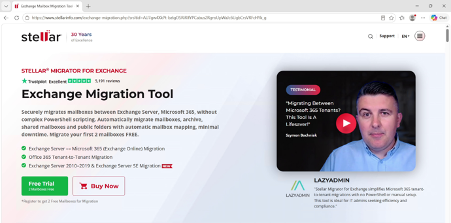
1) Stellar Migrator for Exchange
Stellar has been building data recovery and mailbox management solutions for decades, and their Stellar Migrator for Exchange is designed specifically to simplify Exchange‑to‑Microsoft 365 and tenant‑to‑tenant migrations. This Exchange Migration tool focuses on migrating essential mailbox data such as emails, calendars, contacts, and public folders, while offering features like automatic mailbox mapping, scheduling, concurrency controls, and delta migration to minimize downtime. Unlike Microsoft’s native migration methods, which often involve complex configuration steps and heavy reliance on scripting, Stellar Migrator for Exchange offers a guided, streamlined workflow that makes the process approachable even for IT teams and admins.
2) Installation & Workflow
Getting started with Stellar Migrator for Exchange was straightforward. The software can be downloaded from Stellar’s site after registering with an email, and 2 free license are tied to the registered account (See screenshot below).
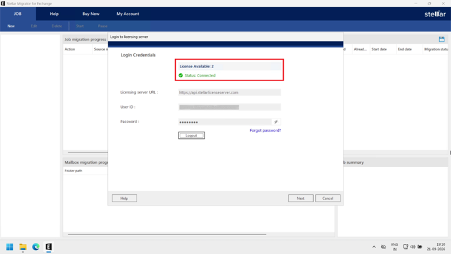
Once connected with license server, creating a migration job is simple. The process involves connecting to the source Exchange server and the target Microsoft 365 tenant, listing the available mailboxes, and mapping them automatically or manually.
Let’s see the step by step process
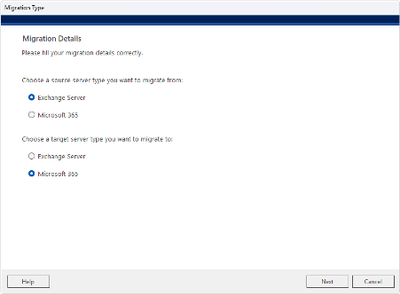
Step 1 – Select Migration Type
Select the source and destination platforms. For this test, we selected Exchange Server to Microsoft 365.
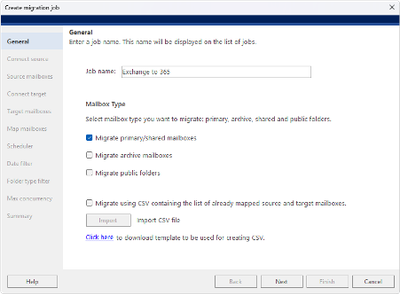
Step 2 – Create Migration Job
Enter a name for the migration job and select the required mailbox types before proceeding.
Step 3 – Connect Source Exchange Server
Enter the Exchange Server details and validate the connection.
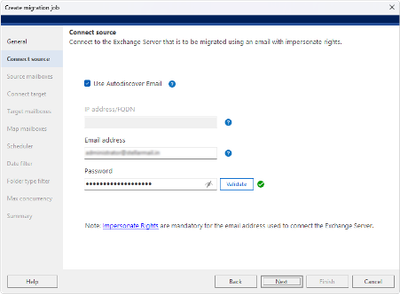
Step 4 – Select Source Mailboxes
Select the mailboxes to be migrated or import the mailbox list using CSV.
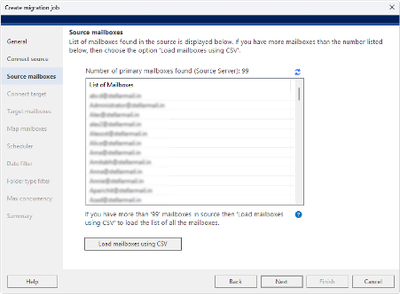
Step 5 – Connect Microsoft 365
Connect the destination Microsoft 365 tenant using Auto Registration or Manual Registration.
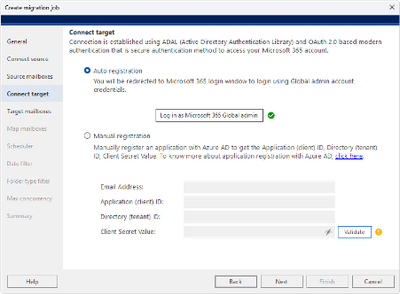
Step 6 – Select & Map Mailboxes
Select the target mailboxes. Stellar can automatically map mailboxes based on email addresses, while unmatched mailboxes can be mapped manually.
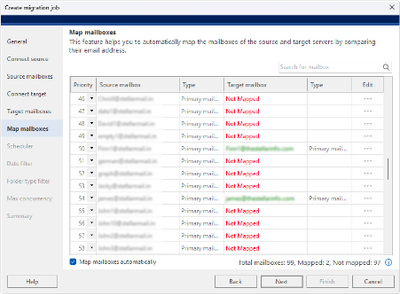
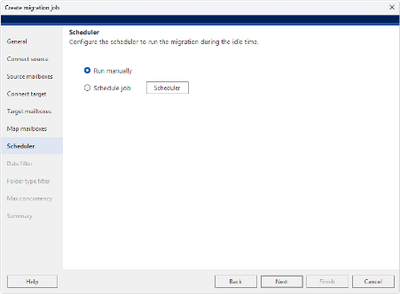
Step 7 – Configure Schedule
Set the migration schedule according to your requirements.
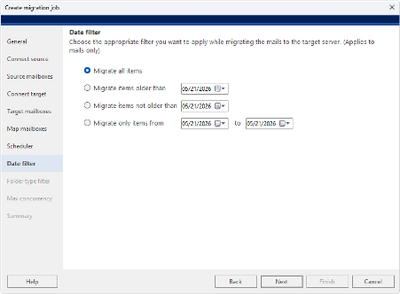
Step 8 – Configure Date Filter
Specify the date range for the data you want to migrate.
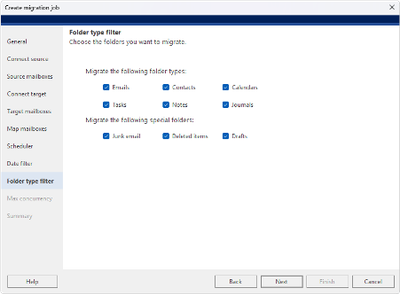
Step 9 – Configure Folder Filter
Select the mailbox folders and data types to include or exclude from the migration.
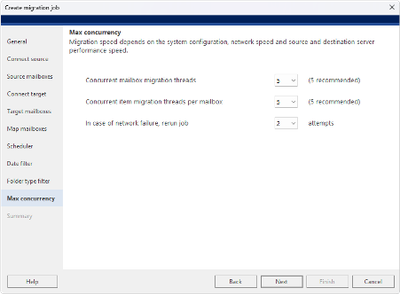
Step 10 – Configure Concurrency
Set the number of concurrent mailbox and item migration threads based on your environment. Stellar provides concurrency controls that allow administrators to configure these settings and optimize overall migration performance.
Step 11 – Start & Monitor Migration
Review the migration summary and start the job. The migration dashboard displays real-time progress, migrated items, failed items, and mailbox status.
Administrators can then choose which folders to migrate, decide whether to run the job immediately or schedule it for off‑hours, and finalize the configuration.
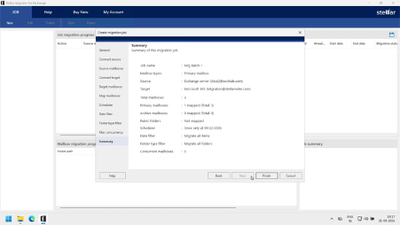
A live dashboard provides visibility into progress, migrated items, and any errors. Overall, the workflow is guided, intuitive and user friendly.
3) Performance, Reliability & Speed testing
Stellar Migrator for Exchange delivers stable performance during mailbox migrations. System resources such as CPU, memory, and disk remained steady (See screenshot below), with only moderate network activity during transfers.
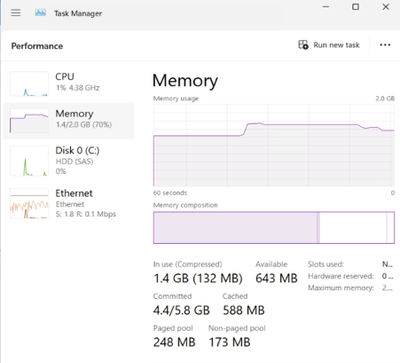
I began by using Stellar Migrator for Exchange to assess how well it delivers on its performance claims, focusing on a mailbox of approximately 25 GB to evaluate migration speed, reliability, and overall usability.
Since migration speed is an important factor when evaluating migration software. For example, with five mailboxes containing 8 GB of data each, you should running multiple mailboxes concurrently, with 5 threads per mailbox and 5 items per thread, depending on the available system resources.
Stellar provides concurrency controls that allow administrators to configure these settings and optimize overall migration performance.
We migrated a single mailbox containing approximately 25 GB of data, using 5 threads per mailbox and 5 items per thread, and measured the actual migration performance.
The migration achieved an average speed of around 2,500 MB per hour in our test environment. It took almost 10 hours 14 minutes to complete the migration of 25GB of mailbox. Actual speeds can vary depending on factors such as mailbox size, network bandwidth, source and target server performance, and concurrency settings.
| Test Parameter Result | Test Parameter Result |
| Mailbox size | Approximately 25 GB |
| Number of mailboxes tested | 1 |
| Threads per mailbox | 5 |
| Items per thread | 5 |
| Average migration speed | Approximately 2,500 MB/hour |
| Total migration time | Approximately 10 hours 14 minutes |
| Test environment | Actual test environment; performance may vary |
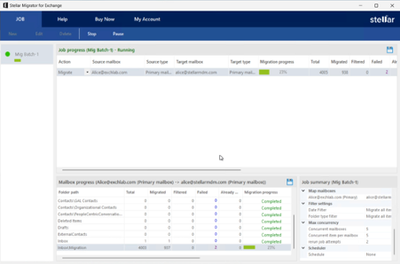
Users can continue working during migration, with no disruption to sending or receiving emails.
The software also has ability to re‑run jobs or perform delta migrations ensured that skipped or new items were synchronized without repeating the entire process.
Overall, the tool proved reliable, efficient, and less complex than native migration methods, making it a practical choice for IT teams seeking predictable results.
Reports could be exported to HTML for documentation, and failed items could be retried, ensuring no data was left behind.
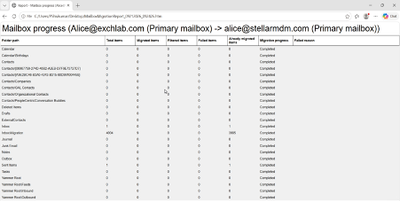
Overall, the error handling and logging features were clear, practical, and admin friendly.
4) Strengths & Limitations
- Simple, guided migration workflow without relying heavily on scripts.
- Flexible mailbox mapping reduces manual effort
- Good migration control and speed optimization using Concurrency settings allow administrators to control mailbox and item-level threads
- Useful migration management features such as Scheduling, date filters, folder filters
- The live dashboard provides visibility into migration progress, migrated items, failed items, and mailbox status.
- Delta migration and the ability to continue working during migration can help reduce the need for a prolonged cutover window.
Limitations:
- Mailbox rules are not migrated, which could be significant in environments with extensive rules.
Licensing & Cost:
- Pricing starts at around $10 per mailbox for smaller batches and can go down to approximately $3 per mailbox for larger volumes. There are also flexible pricing options for different mailbox counts, including $25, $50, $100, and $500+ plans, making it suitable for both smaller migrations and larger projects.
- Custom quotes available for enterprise‑scale projects.
5) Conclusion
Stellar Migrator for Exchange is a straightforward solution for migrating mailboxes from Exchange Server to Microsoft 365. Its guided workflow, mailbox mapping, concurrency controls, scheduling, delta migration, and clear progress monitoring make the migration process easier to manage.
In our testing, the 25 GB mailbox migration achieved an average speed of around 2,500 MB per hour, although actual performance will vary depending on the environment and configuration. The ability to continue working during migration, retry failed items, and generate migration reports also adds practical value for administrators.
For IT teams and MSPs planning Exchange migrations, Stellar Migrator for Exchange provides a structured approach that can help reduce migration complexity and minimize user disruption.

Alexia is the author at Research Snipers covering all technology news including Google, Apple, Android, Xiaomi, Huawei, Samsung News, and More.