If you are managing a website or blog and you are new to this you might come across many problems during this management process and you want to learn and manage things on your own. Sometimes for specific solutions such as increasing website performance or search rankings that you have found on the internet you might need to upload files, access files, remove files from your hosting or domain root folder. Beginners might find it difficult how to access files and folders to make suggested changes. This article will guide you through step-by-step process to access your domain root folder in Godaddy hosting account.
In Godaddy hosting account presumably WordPress managed hosting you cannot access your ftp account directly from hosting account rather you need a third party software to connect to your ftp account where all folders and files are kept.
There are quite few good ftp client softwares out there like FileZilla for all platforms
and Cyberduck for Mac OS X
Here I will be using FileZilla to connect to Godaddy ftp account. Download and Install FileZilla for later use.
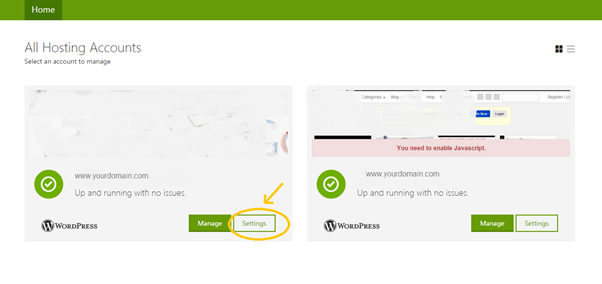
One you have downloaded FileZilla now you need to login to your Godaddy hosting account. Go to your Godaddy account and click on manage hosting where you can see your domain hosting account.
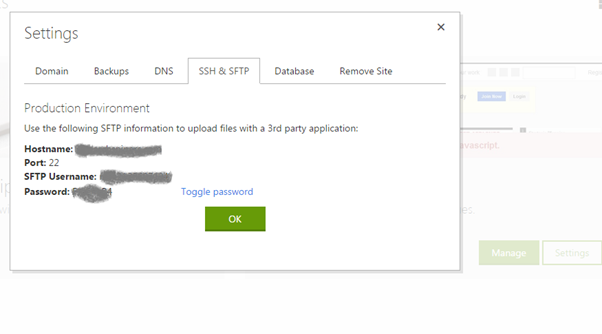
Choose the domain you want to access and click settings as shown in the image above. Now click on SSH & SFTP from the top menu
Now you will see all the information Hostname, Port, SFTP Username and Password that you will need to connect to your SFTP account, files and folders. If you can see the password just click toggle password to view the password. Copy all this information and save it in the document or just leave it open while you connect to the account.
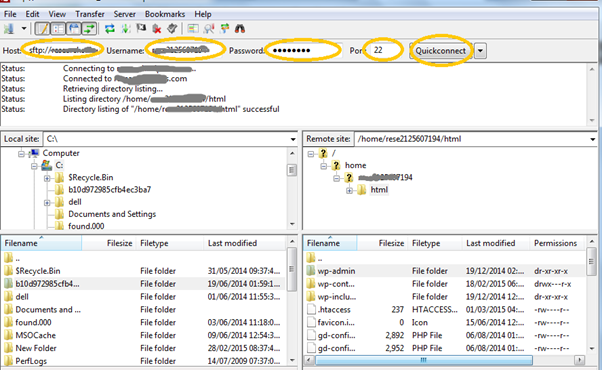
Now you will open up FileZilla application which was downloaded and installed earlier. When you will open it you will see the hostname, username, password and port bar on top fill in the Godaddy hosting details and click quick connect.
Now you will see all the hosting account files in the right column and your computer files and path in the left column.
Your domain files are always on the right side, now to access any file in the domain root folder double click it, to download any file or folder from the domain right click on it and click download. And for uploading any files and folders to the domain root folder, locate the file on left hand side which is on your computer, right click on in and click upload.
There is no problem in downloading files from ftp account but you need to be careful when uploading files and folders to the domain root. Make sure you are uploading correct files. Be extremely cautious when deleting files from the domain folders, as it may cause harm to your up running website.
Digital marketing enthusiast and industry professional in Digital technologies, Technology News, Mobile phones, software, gadgets with vast experience in the tech industry, I have a keen interest in technology, News breaking.
If you've never used one before, the term data room can sound more intimidating than…
High price, too much weight and a narrow niche: the Vision Pro headset forces Apple…
US President Donald Trump has ordered a new emergency regulation for the power grid. It…
Huawei has officially launched the sale of the Watch GT 7 Pro in China, introducing…
Apple is considering the potential to transform its future smart glasses into health and fitness…
Everyone has parts of their past they'd handle differently if given another chance. Maybe you…