Today we are going to answer a most askable question which is how we can download YouTube video directly on the iOS device. Most of the people, who love to watch different videos, programs, video songs on the mobile device, preferred to use Android devices on which they can easily download the stuff.
Although, the Apple does not allows you to directly download the videos or songs on the iPhone or iPad. But, in today’s world, every problem has a solution. So, we are here to solve the problem.
Read Also: WhatsApp to Soon Delete all your Data – Backup before 12th November
Through this post, you can easily learn how to download the videos on iPhone directly from the Internet and you can easily save them to the camera roll of the Apple device. So, without wasting your more time on reading, let’s get started.
Step 1: You have to download a third-party app on to your iPhone called “Documents by Readdle” by Readdle Inc. from the Apple App Store
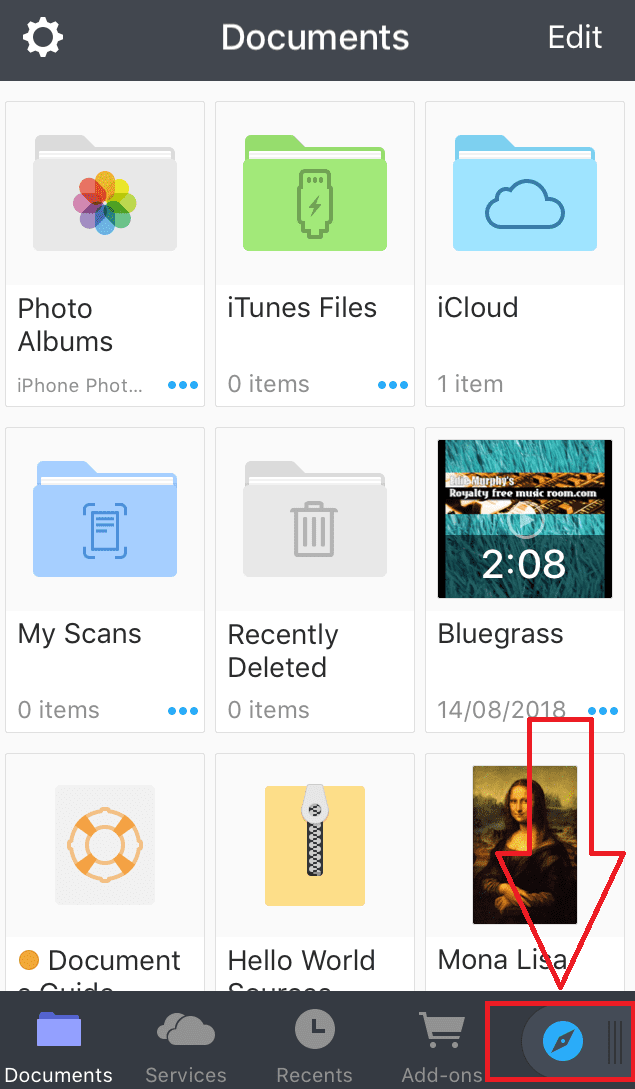
Step 2: When the app is installed, open it and at the right bottom of the screen, hold the blue Safari icon and swipe it from right to left
Step 3: Type the website link “savefrom.net” in the search bar at the top of the screen and open it
Step 4: After opening the website, go to the YouTube app installed on your iPhone
Step 5: Now open up a video in the YouTube app that you want to download
Step 6: Tap on the “share button” and copy the link of the video by tapping on the copy link
Step 7: After that, go back to the documents app and paste the link—that you have copied from the YouTube App— in the search bar of the website “Save From”. Right after the second, a green button with the title of Download will appear on the screen of the iPhone
Step 8: Click the download button and save the file by tapping the blue ‘Done button’ at the top right corner (If a popup comes up on the screen asking for the notification permission tap the ‘allow’ button)
Step 9: Wait for the download to complete, you can check the progress of the download by tapping on the download button middle bottom of the screen
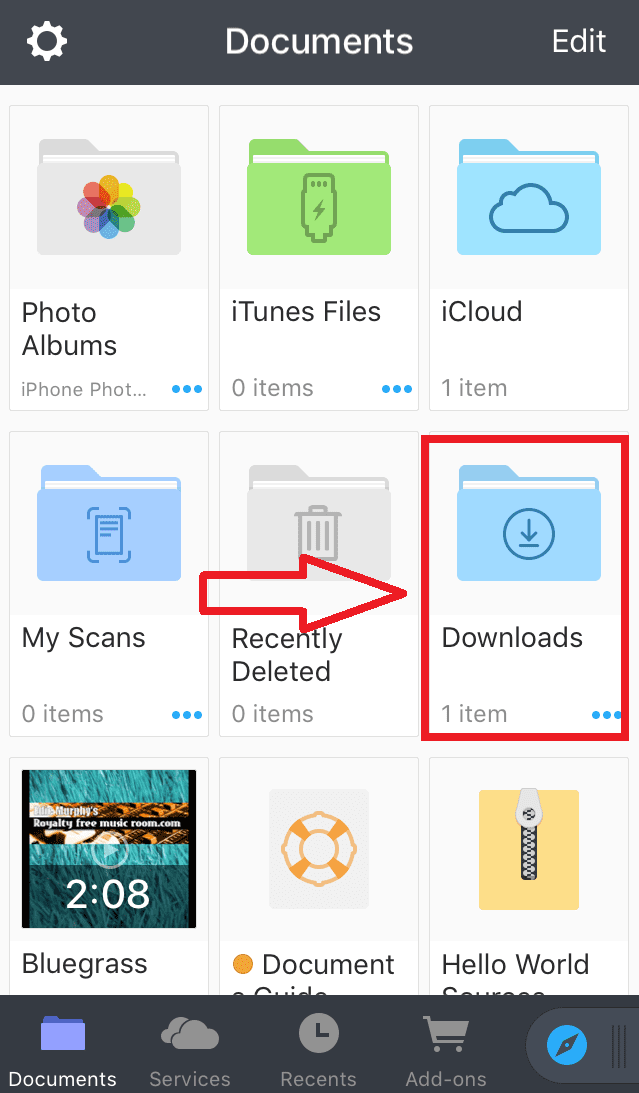
Step 10: Once your download is completed, press and hold the blue folder button at the left bottom corner of the screen and swipe the screen from left to right
Step 11: Now tap on the “Download” folder to open it and check the downloaded file
Step 12: Tap on the three dots below the downloaded video, and click on the ‘Move’ button
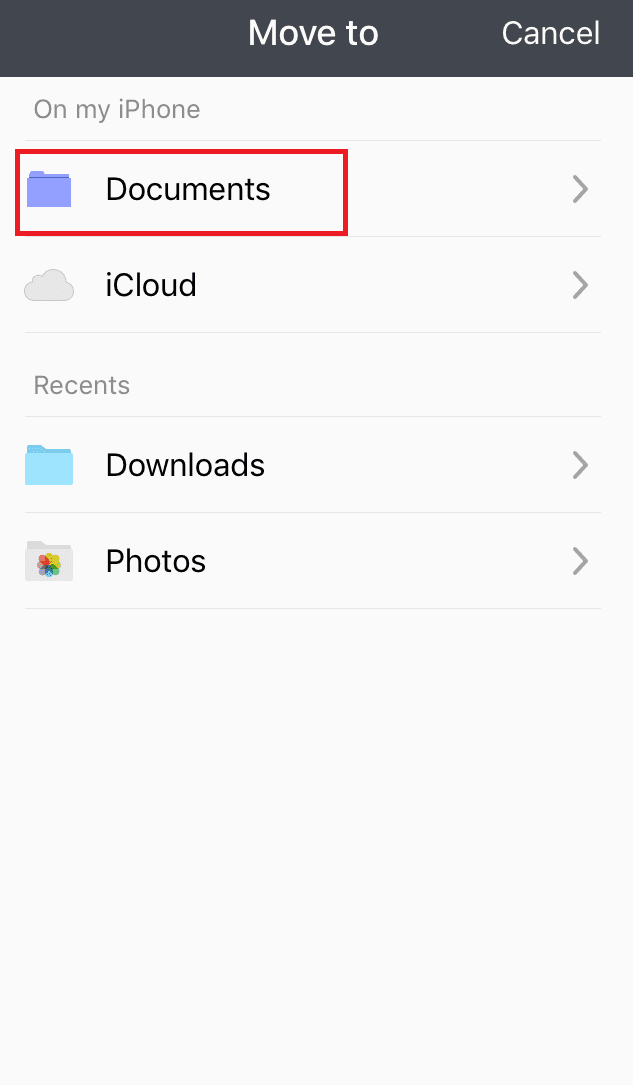
Step 13: Click the Documents, open up the folder called ‘Photos’ and tap on the “Move to ‘Phone’” button at the bottom of the screen
After the item is moved, your video will be saved in the Photos’ video section, you can easily play it anytime offline.
Enjoy!
Research Snipers is currently covering all technology news including Google, Apple, Android, Xiaomi, Huawei, Samsung News, and More. Research Snipers has decade of experience in breaking technology news, covering latest trends in tech news, and recent developments.
If you've been put in charge of picking the next hypervisor for your data center,…
Expensive folding cell phones, cameras in headphones and a change in boss: Apple is introducing…
Meta ends a process about addiction design at Facebook with a billion-dollar payment and conditions:…
Mass unemployment, cyberattacks and bioterrorism: Bill Gates paints a bleak picture of artificial intelligence in…
A new version of the Android Trojan ToxicPanda threatens users of financial and crypto applications…
Google is apparently planning a design update for YouTube and YouTube Music on iOS. Discovered…